
Tidy Up History Controls & Input Tips
Master movement, interaction, and cozy cleaning inputs on keyboard, mouse, or full controller support.
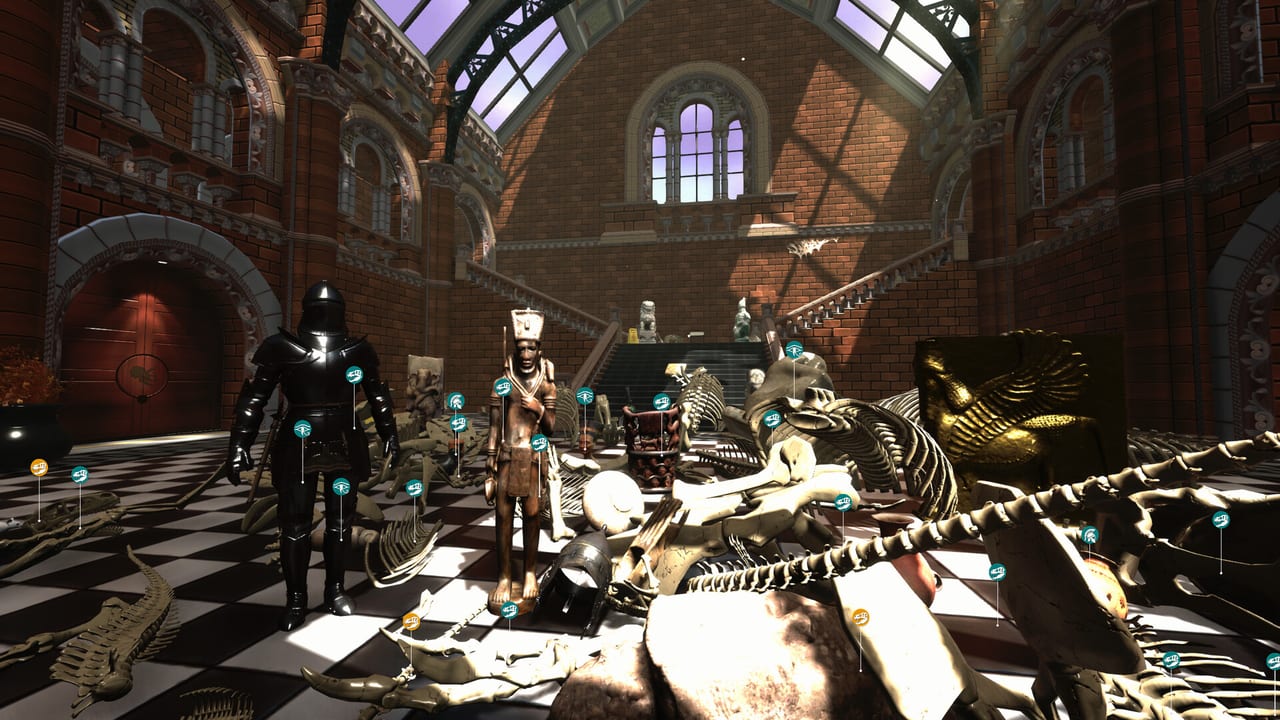
Tidy Up History is a first-person cozy sim: you walk museum halls, look closely at messes and exhibits, pick things up, place them correctly, and trigger cleaning or repair actions. Casual Human ships the game with full controller support alongside keyboard and mouse, so you can play at a desk or on the couch. This page focuses on practical control habits rather than a brittle list of every default binding — always confirm the in-game settings menu if a patch remaps a key.
Core actions you will use constantly
Regardless of device, you need fluency in six verbs:
- Move through halls, staircases, and wing corridors without clipping into displays.
- Look / aim so you can inspect pedestals, floor clutter, and high shelves.
- Interact / pick up objects, tools, knowledge books, and keys.
- Place / confirm artifacts and fossils onto mounts or cases.
- Clean / repair dirty surfaces and damaged fixtures.
- Open menus for inventory context, abilities, and settings (including remapping).
If any of those six feels awkward in the first ten minutes, pause and remap before you build bad muscle memory. Comfort matters more here than competitive reaction time.
Keyboard and mouse habits
Most PC players default to WASD movement with mouse look. Useful habits:
- Lower mouse sensitivity slightly for precise pedestal placement. Over-sensitive look makes aligning fossils and labels frustrating.
- Stop walking before fine placement. Strafing while seating a fragile-looking piece causes mis-clicks and wrong-slot attempts.
- Use short taps when scanning shelves. Slow pan passes catch keys, books, and small clutter that sprinting past will miss — critical for Keys and Wings and Knowledge Books.
- Bind interact and clean to comfortable fingers. If default interact sits on an awkward key for you, change it early; you will press it thousands of times.
- Keep a free finger for sprint or crouch equivalents if the build offers them, but do not sprint through rooms you have not visually scanned.
When you are learning Cleaning and Repairs, practice a rhythm: approach stain → face it squarely → trigger clean → verify the surface feedback → move to the next patch. Facing the work reduces missed spots behind pillars.
Launch Hotfix 1.0.2 — camera comfort
Launch Hotfix 1.0.2 (17 September 2026) made three comfort changes that rewrite how the museum feels:
- Camera bobbing disabled — Casual Human turned it off because it caused discomfort. Long pedestal sessions should feel steadier immediately after updating.
- Camera raised to a more realistic player height — high shelves and floor clutter read differently; relearn one lap of a familiar hall.
- Mouse sensitivity tweaked — recalibrate in settings before a labeling marathon; leftover pre-patch sensitivity fights precise seats.
Controller and Steam Deck players benefit too: bobbing removal is a handheld gift even when the notes call out mouse tuning. If motion discomfort lingered from 1.0.0, give 1.0.2 a fair retry with lower look speed.
Controller comfort
Full controller support makes long tidy sessions easier on the hands. Tips that transfer across common gamepad layouts:
- Use the stick for look at low sensitivity during placement; bump sensitivity only for corridor travel.
- Hold aim steady with a soft grip when seating dinosaur bones — see Dinosaur Skeletons.
- Map interact and clean to bumpers or face buttons you can mash without shifting grip.
- Use the touchpad or dedicated button (if available) for menus so you are not diving into chorded combinations mid-clean.
- Enable vibration cues if they highlight successful placements — haptic feedback can confirm a correct seat when visual UI is busy.
Steam Deck and living-room play benefit from the same rules: slower look, deliberate stops, and frequent visual sweeps of corners. Deep handheld advice—including 60 FPS targets and hotfix comfort—lives on Steam Deck.
Interaction discipline (the real skill)
Controls are easy; discipline with controls is what speeds restoration:
- Face the object. Interactions fail more often from bad camera angles than from wrong buttons.
- Clear floor clutter near a pedestal before placing. You want a clean approach path so the interact prompt targets the mount, not a broom pile.
- One job at a time. Do not try to clean, carry, and open a menu simultaneously. Finish the current verb.
- Re-check after placing. A quick look-up/look-down confirms the artifact seated and the label state updated — see Artifacts and Labels.
- When lost, stop moving. Spin in place, identify landmarks, then walk. Panic sprinting creates more missed keys.
Accessibility and session comfort
Cozy sims reward long sessions. Protect yourself:
- Take breaks every 45–60 minutes; eye strain makes tiny clutter harder to spot.
- Raise UI scale or brightness in settings if text on knowledge books is hard to read.
- Remap any action that forces a stretch; Handyman-style repair streaks should not hurt your wrist.
- If you play with a controller, rest the pad between wings so stick drift does not sneak into placement.
How controls connect to progression
Better input habits unlock content faster indirectly:
- Cleaner camera work finds more knowledge sources → faster identification → fewer wrong placements.
- Steady placement speeds skeleton assembly → Assembler progress and prettier halls.
- Thorough sweeps find keys → new wings on Museum Rooms open sooner.
- Comfortable bindings let you grind XP for abilities without fatigue — Abilities and XP.
Practice drill (five minutes)
In any open starter hall:
- Walk a full lap at walking speed while only looking — no picks.
- Pick up five clutter items and seat or dispose of them correctly.
- Clean three distinct dirty patches, verifying each clears.
- Attempt one careful artifact placement with a full stop beforehand.
- Open and close the menu without moving the camera wildly.
If that drill feels smooth, you are ready for real restoration. If not, remap and repeat before tackling denser wings in the Walkthrough.
Reminder on platforms
Tidy Up History is a Windows Steam release from Casual Human with single-player focus and full controller support. There is no co-op binding set to learn — just you, the museum, and whatever input device keeps you tidy longest.
Frequently Asked Questions
Quick answers to the most common questions.
Does Tidy Up History support controllers?
Yes — full controller support is available alongside keyboard and mouse. Remap early if any face button feels awkward for interact or clean. Deck tips: Steam Deck.
What did Hotfix 1.0.2 change for the camera?
Camera bobbing was disabled, camera height raised, and mouse sensitivity tweaked. Details on Launch Hotfixes.
Why do my placements keep missing?
Stop moving, face the mount squarely, and clear nearby clutter so the prompt targets the display. More tips in Artifacts and Labels.
Should I sprint while searching for keys?
No. Slow sweeps—and audio cues after 1.0.1—find keys more reliably. See Keys and Wings.
What should I practice first?
Movement, look sensitivity (recalibrate after 1.0.2), interact, place, and clean — then apply them in Cleaning and Repairs.